← Back to resources

Missionary field library

Show the idea. Teach the handoff.

Open, print, or save these focused guides before going offline. Start with the initiative overview, then choose only the transfer route your group needs.

What missionaries can share

A clear two-minute explanation.

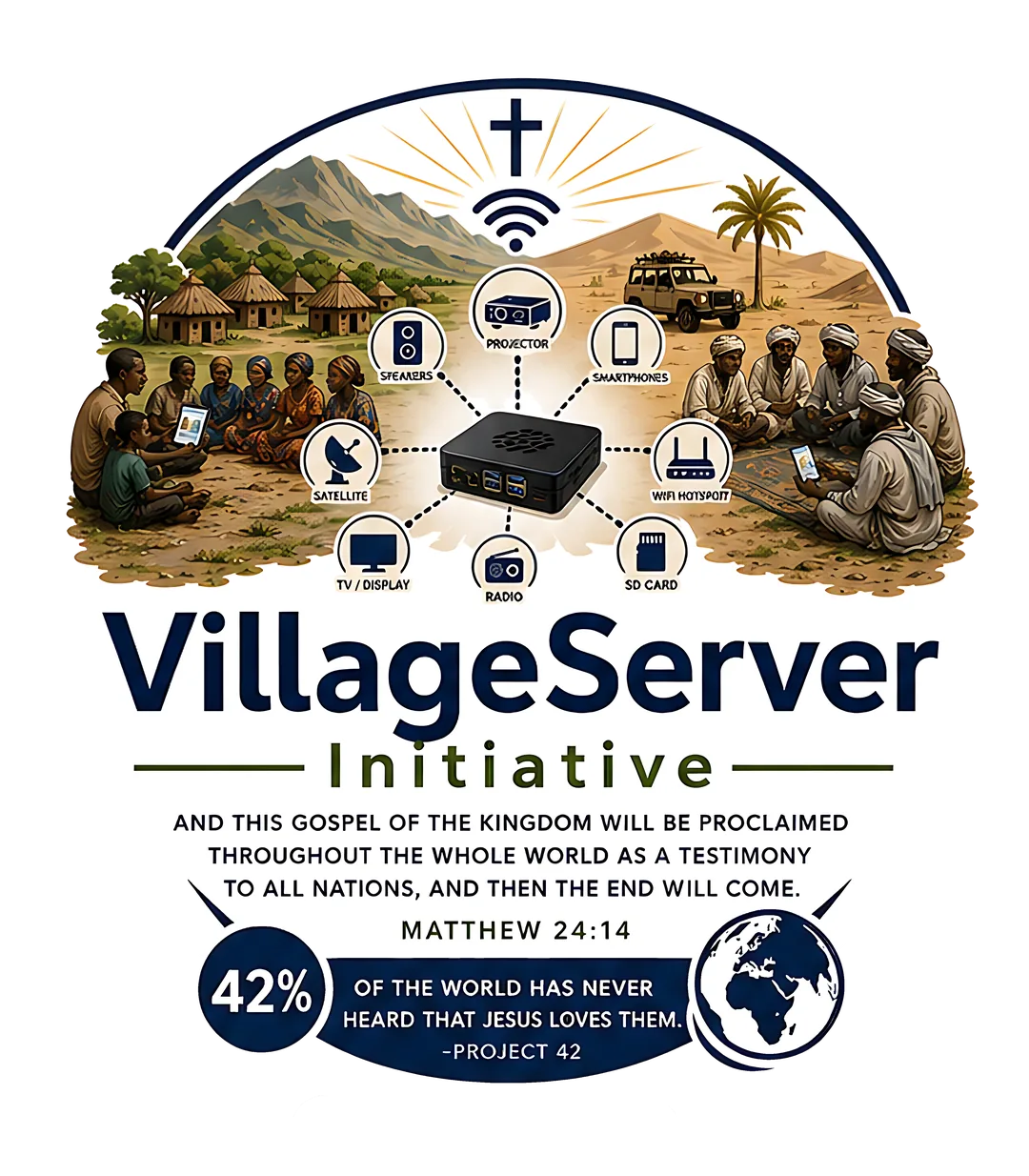
VillageServer is a portable offline library. A Raspberry Pi stores Scripture, audio, films, training, children’s resources, and PDFs, then creates local Wi-Fi so nearby phones can browse without a data plan.

Language microSD cards and USB drives carry the library farther. Solar power, projection, phone charging, and optional satellite access can be added when a setting needs them.

Printable transfer guides

Choose the two devices.

Each one-page handout gives the exact field route, a success check, and the official help source. Save the PDFs before travel or print only the routes the team will use.

Android nearby sharing

Android to Android

Quick Share steps from file selection through verification.

Cross-platform

Android to iPhone

Use LocalSend, save into Files, and confirm the resource opens offline.

Field library

microSD to phone

Protect the master card, copy the right language folder, and safely eject.

Want the instructions on-screen instead?

The Transfer Center keeps one route open at a time and includes computer, phone, USB, and microSD options.

Open Transfer Center

Missionary field FAQ

Answers worth having before the road gets rough.

Click a question to open only the answer you need.

01What is VillageServer?+

A portable offline library that helps communities access Bible text, audio Scripture, gospel films, discipleship resources, children’s materials, training, and PDFs on nearby phones and computers.

Read the full initiative overview →
02Does the library need internet?+

No. The Raspberry Pi creates a local Wi-Fi network and serves resources stored on the kit. A satellite connection is optional and used only when live internet is valuable and available.

03How does someone connect?+

Power the kit, join its local Wi-Fi, then open the address printed on the kit. From there, the person can read, listen, watch, or save selected files.

Choose an access method →
04What should a field team carry?+

Carry the kit’s printed quick-start card, labeled language media, the correct USB-C or Lightning readers, known data-capable cables, a power plan, and the transfer PDFs for the device mix you expect.

05Which transfer apps should be installed?+

Use built-in AirDrop for iPhone-to-iPhone and Quick Share for Android-to-Android. Install LocalSend on mixed devices before travel; it works across Android, iOS, Windows, macOS, and Linux on the same local network without an account.

Official LocalSend site ↗
06How do we protect a master microSD card?+

Label it by language, keep a second master copy, use the adapter lock when available, and always copy files rather than move them. Do not delete, rename, or reorganize the original in the field.

07How do we know a handoff worked?+

Remove the cable, reader, or network. Turn on airplane mode and open one saved file on the receiving device. If it opens and the original still exists, the handoff is complete.

08Where do setup and hardware instructions live?+

Choose the component on the main setup widget. Each Raspberry Pi, Wi-Fi, microSD, USB, solar, projector, charging, and satellite path opens a focused guide.

Choose a component →

Prepare offline

Save what your team will teach.

Download the overview and only the device routes you expect to use.

Choose pamphlets