A library that fits in your hand
The Raspberry Pi broadcasts a local Wi-Fi hotspot so nearby phones can browse an offline Bible library — no internet, no data plan, and no app install. Power it on, join VillageServer, enter village123, open 10.42.0.1, and the whole library is right there.
Contents
Overview
What is the VillageServer Pi?
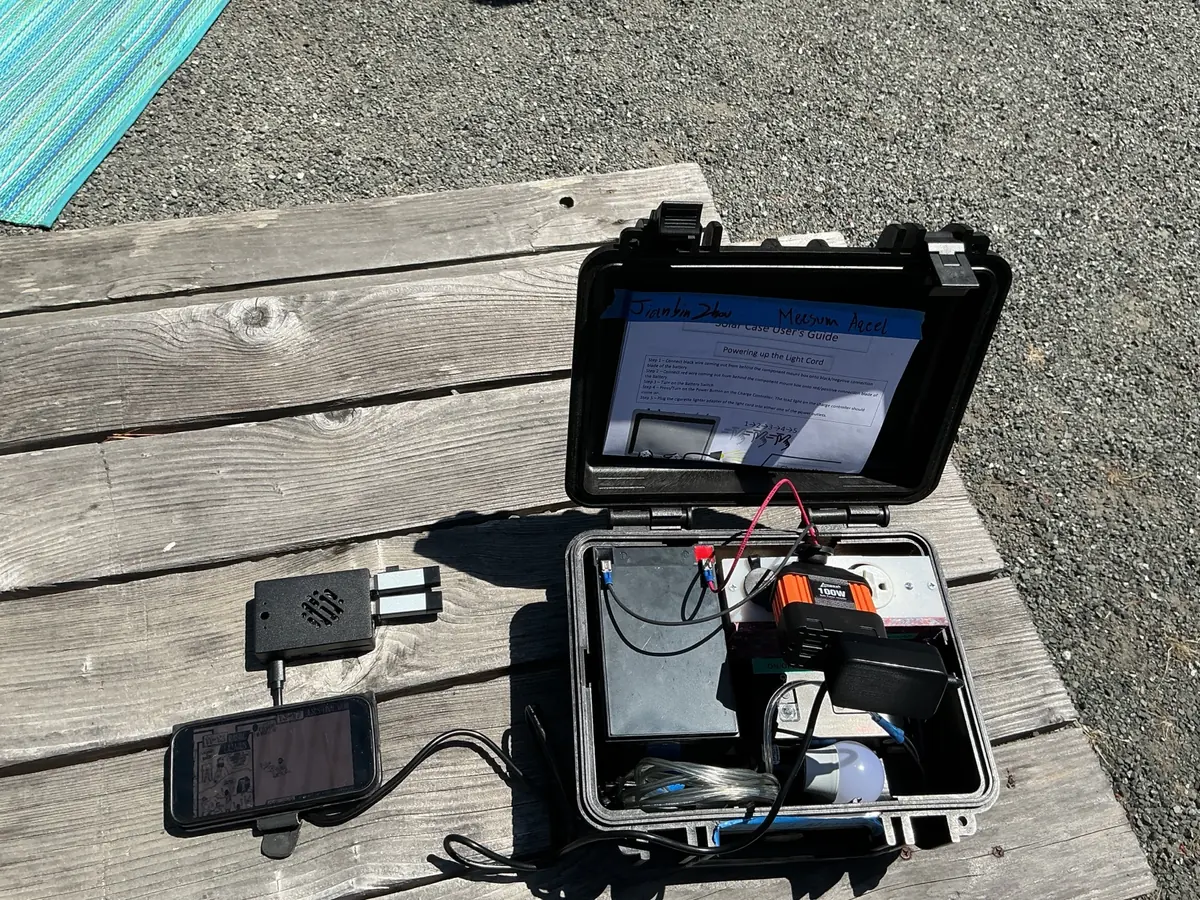
A Raspberry Pi running a local web server. Plug in microSD cards loaded with language libraries, power it on, and it broadcasts a Wi-Fi network. Anyone within range can join that network and open the library in a phone browser — like having a small offline internet made entirely of Scripture and gospel resources.
What the Pi provides
- Auto-broadcasting Wi-Fi hotspot — turns on the moment the Pi powers up, no router or internet needed
- An offline library server — reachable at 10.42.0.1 from any phone browser, no app to install
- MicroSD-based language libraries — the language and resources available are determined by the cards plugged into USB readers
- Four content sections per language — Bible, Audio, Video, and Books, browsable and downloadable straight from the phone
- Fully offline operation — works indefinitely with no internet connection, anywhere there's power
Hardware
| Item | Details |
|---|---|
| Raspberry Pi | Pi 4 (2 GB+ RAM) or Pi 3B+ |
| System microSD | 16–32 GB for the Pi OS |
| Language cards | One microSD per language, in USB readers |
| Power supply | 5V USB-C (Pi 4) or Micro-B (Pi 3) · power bank works |
| Carry case | Optional — keeps everything together for field use |
Get started
Quick start & printable guides
Download the printable handouts below — written for the person in the field, not an engineer. Save them to your phone before you lose internet access.
Content packs are loaded onto microSD cards before deployment. Once the Pi starts broadcasting, users need no Google Drive access, no internet, and no account — just the Wi-Fi password and the library address.
The interface
What you see on a phone
When a phone joins the VillageServer Wi-Fi and opens 10.42.0.1 in a browser, this is what appears — a clean offline library home. No login, no app install, no data required. Try the demo — tap a language, then a section, then a file.
VillageServer Library
English Library
Bible
Live click-through demo — tap your way through it.
Bible — full Scripture text, chapter by chapter.
Audio — dramatised audio Bible recordings, playable in the browser.
Video — LUMO gospel films and other gospel media.
Books — commentaries, discipleship materials, and reference PDFs.
For the field
Using the library — step by step
This is all a person in the field needs to know.
Power on the VillageServer
Plug in the power bank or power supply. Wait about 60 seconds for the Pi to boot. The Wi-Fi network appears automatically.
Join the Wi-Fi network
Open Settings → Wi-Fi and select VillageServer. Password: village123.
Open the library
Open any browser and type 10.42.0.1 in the address bar. The library home loads instantly.
Choose a language and browse
Tap a language card, then tap Bible, Audio, Video, or Books. Read, listen, or watch without saving anything first.
Download to share later
Hold any file link to save it. Share to other phones via AirDrop, Quick Share, LocalSend, Bluetooth, or USB — no Wi-Fi needed.
Troubleshooting
Common issues
Phone joins Wi-Fi but the page won't load
Double-check the address bar shows exactly 10.42.0.1 — not a search. Some phones auto-correct it into Google instead of visiting the address. Retype it manually.
Phone warns "no internet connection"
That's expected — the VillageServer network is intentionally offline. Tap "Stay connected" or "Use anyway" and continue.
Wi-Fi network isn't showing up
Give the Pi a full 60 seconds after power-on. If it still doesn't appear, power-cycle it (unplug, wait 10 seconds, plug back in).
A language is missing
The microSD card for that language may not be seated. Check that the USB reader is fully plugged in and power-cycle the Pi.
Download the printable system overview to keep with the kit for field briefings.
Download Raspberry Pi PDFHave more questions? Eric's companion site has extended resources, additional setup instructions, and more.
Visit the companion site →