Individual phone access is powerful. But there are moments when the whole community needs to be in the same space, watching or listening together. A projector turns one device's library into a shared experience for dozens of people at once.
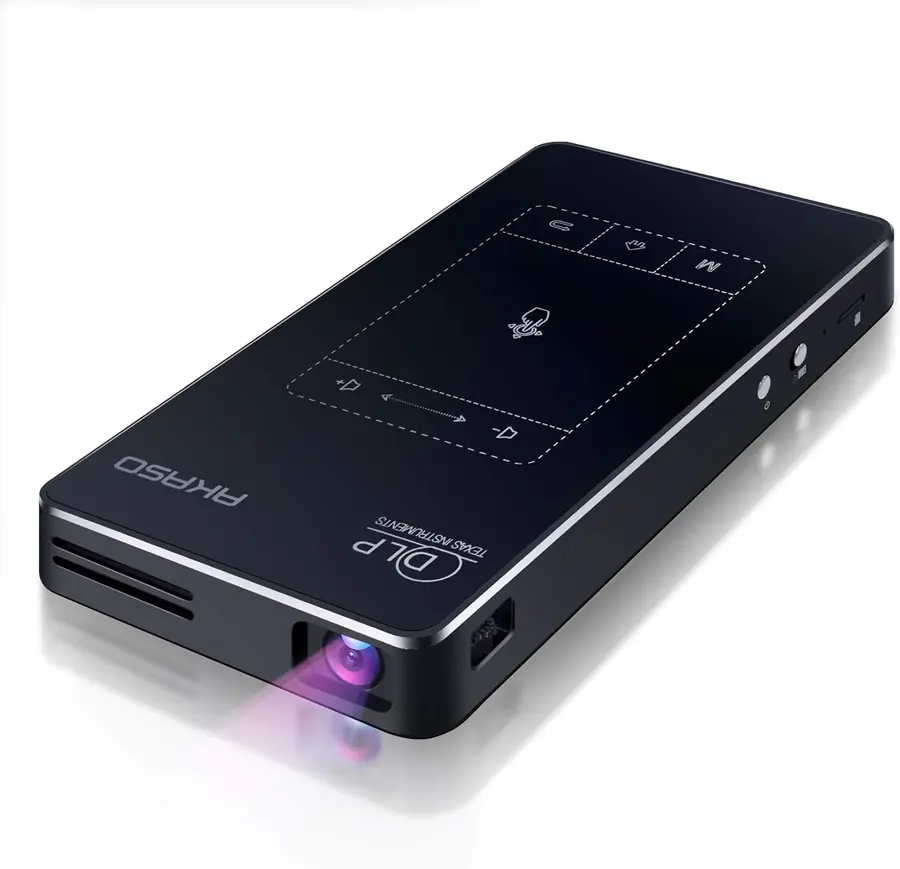
When to use it
Not every session calls for a projector. For one-on-one phone sharing or small group access, a projector is extra equipment to set up, carry, and protect. But for these situations, it's the right tool:
- Gospel film nights — a large screen and clear audio makes the experience communal and memorable
- Church or worship gatherings — song lyrics, Scripture passages, and teaching slides projected for the group
- Children's lessons — illustrated content and animated videos that a room of children can watch together
- Training sessions — visual walkthrough of the VillageServer setup steps for a group of new local leaders
- Evening outreach — an outdoor setting after dark where the whole community can gather around a screen
Running a projector session
- Find the right space
A shaded wall, classroom, or dark outdoor area. Avoid direct sunlight on the screen — even a partially lit screen is hard to watch.
- Connect power to everything first
Projector, speaker, and source device all need reliable power before anyone sits down. Confirm all three are on before inviting the group.
- Connect the source device
Use a phone, tablet, or laptop connected to the VillageServer library. Use an HDMI cable with the right adapter for the device.
- Test audio before testing video
Sound quality matters more than screen size. A bad speaker ruins a film session more than a dim image does. Start with audio.
- Run a short test first
Play a 2–3 minute clip before the full program. Confirm the image is focused, the audio reaches the back of the room, and the source device isn't locking its screen.
- Assign roles
One person on audio, one on the source device, one managing the room. Don't let the person running the projector also try to manage the crowd.
Common problems and quick fixes
- No image on screen — check the HDMI or adapter connection; try unplugging and replugging
- Sound from wrong source — set the Bluetooth speaker as the active audio output in phone settings before starting
- Screen too dim — move to a darker space rather than adjusting projector brightness; ambient light is the problem
- Cable doesn't fit the phone — carry both a USB-C to HDMI adapter and a 3.5mm audio cable to cover most devices
- Screen locks mid-session — disable auto-lock in display settings before the session starts
Download the Projector and Audio overview as a printable PDF for kit planning or field briefings.
Download Projector and Audio PDF